Connect Djinni to RolePark
RolePark publishes your vacancies on Djinni and brings applications back into the RolePark inbox. You only need a Djinni API key: RolePark is the ATS, so no developer or sysadmin is involved.
Updated:
Before you start
- An employer account on Djinni with access to the API. Open https://djinni.co/home/profile/: if your company has API access, you will see the “ATS” tab. If it is missing, write to Djinni support at magic@djinni.co.
- A company admin account in RolePark. Only a company admin connects Djinni; recruiters then publish vacancies.
- One Djinni API key per company. It is not tied to a particular person, so it keeps working when your team changes.
Step 1. Create an API key in Djinni
- Open https://djinni.co/home/integrations/ (the “ATS” tab in your Djinni profile).
- Click “Створити ключ” / “Create key” and copy the key.
- Turn on “Увімкнути поле ATS Job ID у вакансіях” (ATS Job ID field in vacancies). Djinni then returns the RolePark vacancy id with every application, so each application lands on the right vacancy.

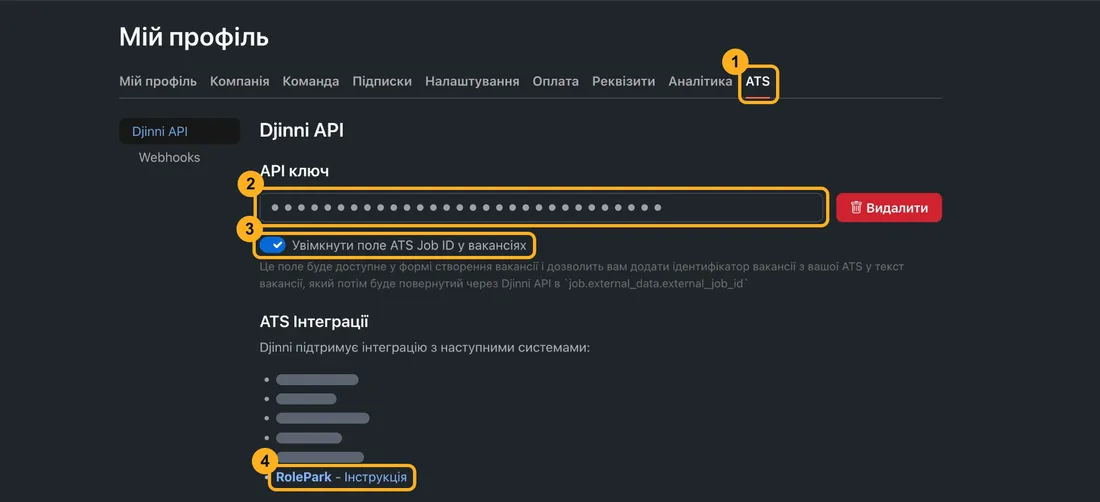
The red “Delete” button next to the key removes it. After that RolePark stops publishing until you paste a new key.
Step 2. Paste the key into RolePark
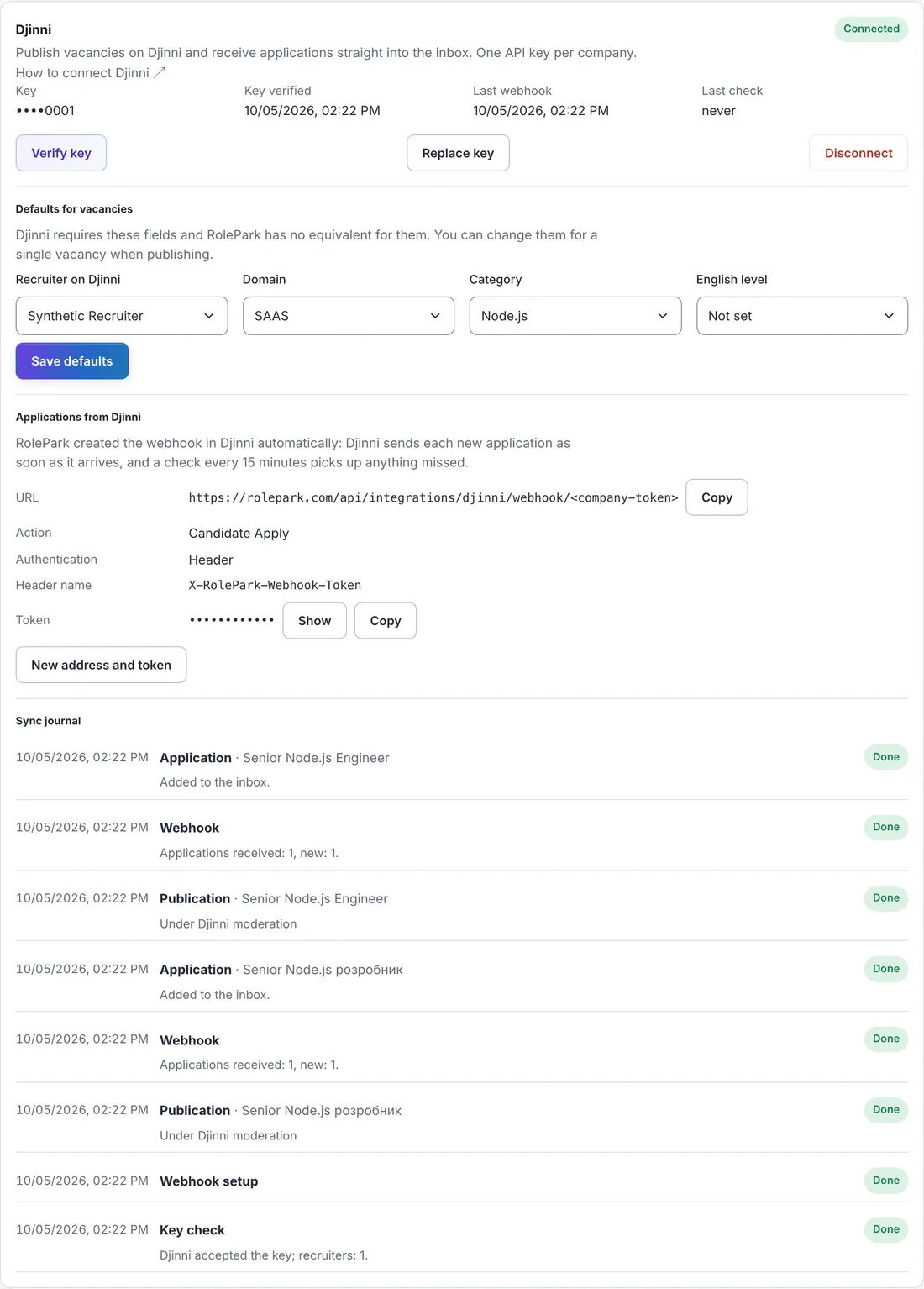
- In RolePark open Settings → Job boards → Djinni.
- Paste the key into “Djinni API key” and click “Connect”. RolePark checks the key with Djinni right away.
- Choose the defaults Djinni requires and RolePark has no equivalent for: “Recruiter on Djinni” (an e-mail from your Djinni recruiters), “Domain” and “Category”. Click “Save defaults”.
The key is shown only as its last four characters after saving. “Verify key” repeats the check at any time; “Replace key” swaps it without losing the webhook settings.
Step 3. Webhook for applications
RolePark creates the webhook in Djinni automatically through the Djinni API when the key is verified. You do not need to do anything; the Djinni card in RolePark says “RolePark created the webhook in Djinni automatically”.
If you prefer to add the webhook by hand, open Djinni → ATS → Webhooks and enter:
| URL | the address from the Djinni card in RolePark (“Applications from Djinni”) |
|---|---|
| Action | Candidate Apply |
| Authentication | Header (custom header) |
| Header name | X-RolePark-Webhook-Token |
| Authentication value (token) | the token from the Djinni card in RolePark (“Show”) |
| Send as JSON | on |
Each company has its own unguessable address and token. RolePark checks the token on every request. “New address and token” in the card replaces both at once.
Publishing a vacancy
- Open the vacancy in RolePark → “Postings” tab → the “Djinni” panel.
- If something Djinni requires is missing, the panel lists it. To publish, Djinni requires a salary range (salary from and to); a draft can go without it. RolePark sends the vacancy range automatically only when it is in US dollars per month; otherwise enter the range for Djinni in “Djinni fields for this vacancy”.
- Click “Publish on Djinni”: RolePark creates the posting on Djinni and publishes it in one step. “Save as a Djinni draft” creates an inactive draft that candidates do not see; publish it later with “Publish on Djinni”.
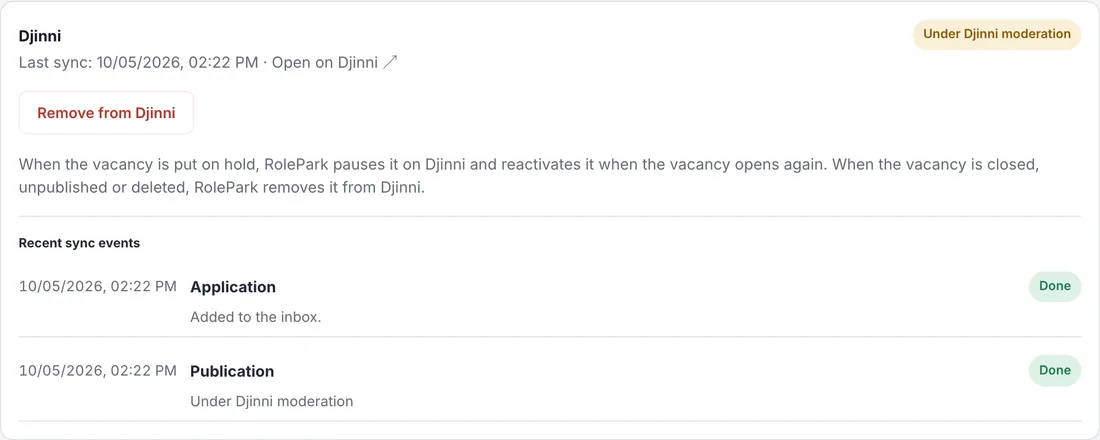
- Djinni moderates new postings. While it reviews, the status is “Under Djinni moderation”.
Statuses in RolePark
- In queue — the request is on its way to Djinni.
- Draft — the posting exists on Djinni but candidates do not see it.
- Under Djinni moderation — Djinni is reviewing the posting.
- Published — candidates see the posting on Djinni.
- Paused on Djinni — the vacancy is on hold; the posting is inactive on Djinni and comes back when the vacancy opens again.
- Error — Djinni rejected the request; the reason is shown next to the status and in the sync journal.
- Removed — the posting is archived on Djinni.
- When you edit the vacancy in RolePark, the posting on Djinni is updated.
- When you put the vacancy on hold, RolePark pauses the posting on Djinni and reactivates it when the vacancy is open again. When you close, unpublish or delete the vacancy, RolePark removes it from Djinni.
- If Djinni is temporarily unavailable, RolePark retries with growing pauses and respects the Djinni limit of 100 requests per minute.
Where applications appear
- Djinni sends each new application to RolePark through the webhook as soon as it arrives. Every 15 minutes RolePark also checks the applications of each published vacancy, so nothing is lost if a webhook did not arrive.
- They appear in the vacancy → “Inbox” tab with the “Djinni” badge and a link to the candidate’s Djinni profile. Accept or decline them as usual.
- If the same person also arrives through a Djinni e-mail notification, RolePark recognises them by the Djinni profile link and does not create a duplicate.
What data is transferred
RolePark → Djinni
- vacancy title, description, required and nice-to-have skills, location and work format;
- salary range (shown publicly only if it is public in RolePark), domain, category and the Djinni recruiter;
- the RolePark vacancy id (as ATS Job ID).
Djinni → RolePark
- name and contacts, if the candidate shared them with you; Djinni profile link, CV link, cover letter and time of the application.
- RolePark does not import gender, mobilization deferment, photo, messengers or quiz answers: you see them in the profile on Djinni.
- The Djinni API key is stored encrypted (AES-256-GCM) and is never shown again after saving or written to logs.
- Disconnecting deletes the key and the webhook. Postings already on Djinni stay there until you remove them.
Troubleshooting
The card says “Key is invalid”
The key was deleted or replaced in Djinni. Create a new key in Djinni and paste it via “Replace key”. Queued publications continue on their own.
“Djinni request limit reached”
Djinni allows 100 requests per minute per key. RolePark waits and continues automatically; nothing needs to be done.
Djinni rejected the vacancy
The reason from Djinni is shown in the vacancy panel and the sync journal. Fix the vacancy (for example the salary range or category) and click “Try again”.
The webhook is disabled in Djinni
Djinni disables a webhook after error answers. RolePark always answers successfully, but if the webhook shows “failed” in Djinni, click “Verify key” in RolePark to set it up again. The 15-minute check keeps bringing applications in the meantime.
There is no “ATS” tab in my Djinni profile
Your company does not have API access yet. Write to Djinni support at magic@djinni.co.
Support
Questions about RolePark: help@rolepark.com
Questions about API access on Djinni: magic@djinni.co.